
Projects, tasks, statistics, communication. Everything you need to work together, not side by side.
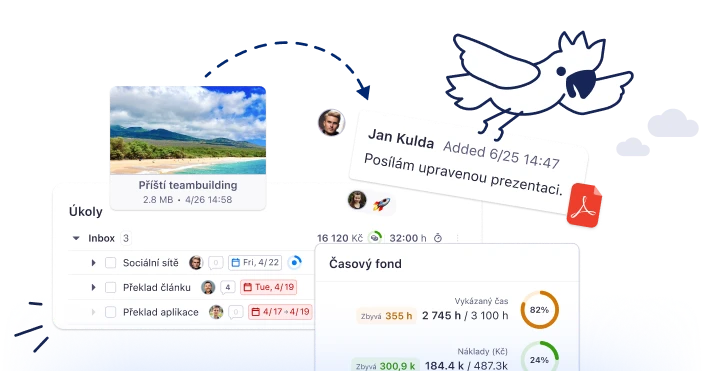
Projects, tasks, different perspectives. Spread out your work so that it makes sense to you and the whole team. The result? A clear overview, deadlines met, and fewer things stuck halfway through.
Well-organised projects save up to 30% of communication time.

Tudou writes...
Projects are virtual folders for your tasks, clients or departments. They bring order to your work so that nothing is ever lost. You can see what’s happening at a glance - no searching through emails.
More about Projects
To-Do lists are lists of tasks within a project where each task can have its own subtasks and checklists. They give the work a clear order and divide it into logical units that are easier to navigate. The result is delegation without endless explanation and a team that knows what to do.
More about To-Do lists
Kanban presents a visual display of tasks in columns - To Do, In Process, Done. You will get an instant overview of what stage the tasks from a given project are in. It minimizes progress queries and ensures you have more time to do valuable work.
More about Kanban
Timeline allows you to view your tasks in the form of a Gantt chart - graphically, in a timeline. It helps you see how tasks build on each other and where critical points arise. Spot potential delays before they occur. Your plans will be realistic and data-driven, not just guesswork from your desk.
More about Timeline
Mind maps help you visually break down projects - from big goals to specific tasks. Capture your ideas instantly and turn your creative flow straight into a project plan. It will give your projects a clear structure that is created in minutes, not hours.
More about Mind map
Comments, mentions, notifications. Communicate directly in the task and nothing gets lost in emails. The history stays, even when people leave. You don't have to keep track of who, what, when, where...
Communicating directly at the task eliminates 80% of unnecessary emails.
Tudou writes...
Discussions for tasks are comments directly under each task - clearly, in one thread. It consolidates all communication about the task into one place, no more sorting through emails and chats. No more tracking down who wrote what comment and where, saves you a lot of time.
More about discussions
Mentions are used to tag a colleague directly in a comment using @name. It notifies the tagged colleague that you need a response from them. It will speed up responses, reduce delays and make collaboration smoother.
More about Mentions
Notifications are alerts about important changes that you will receive in the app and by email. They help you keep track of how activities are moving, even when you're not in Freelo. You'll have a clear head as important things will find you on their own.
More about Notifications
With this feature, you can record a voice message or screen recording directly in Freelo. It helps you explain complex things faster and more efficiently than if you had to type them. Eliminate misunderstandings and speed up the flow of information.

Sharing with outsiders is a way to invite clients or contractors to selected projects. It consolidates team and external communication into one tool so you don't have to overclick. Simplify approvals, unify your workflows, and look more professional in front of your clients.
More about Sharing
Dashboard, calendar and smart filters. Stay on top of things, even when you're in over your head. What you don't see, you don't control. And with Freelo, you can see everything at the click of a button.
Daily calendar planning will increase productivity by 25%.
Tudou writes...
The Dashboard is your personal overview of all the tasks you are responsible for across projects. It will help you navigate your tasks on a daily basis so you know what's coming up and don't miss anything. You don't have to think over and over about what to tackle - less decision making, more space.
More about Dashboard
Tasks displayed in a classic calendar layout with the option to connect to Google or Outlook. Helps you keep deadlines in sight and plan your work time more efficiently. One view of all activities - when deadlines start piling up, you can reschedule in time.
More about Calendar
Recurring tasks are created automatically at regular intervals - daily, weekly, monthly. They minimize the operational time associated with manually entering routine tasks. They bring you freedom and the knowledge that regular activities are running, even when you're not there.
More about recurring tasks
Labels are custom color-coded for categorization and more convenient task filtering. They help you label tasks in your own way - by type, client, priority or whatever you need. Chaos instantly turns into a clear system that the whole team understands.

Filtering and searching are ways to easily find a specific task, comment or file. Even with hundreds of tasks and projects, you can find what you're looking for in just a few clicks. You'll save time and energy that would otherwise be wasted on frustrated clicking.
More about Search
Budgets, reports, time tracking. Track how much your projects are costing you and whether you're making money on them. Real numbers instead of desk estimates mean more accurate planning and easier billing.
Time tracking reveals where your hours are actually going.
Tudou writes...
Time tracking is built directly into your tasks, so you can track your work without switching between apps. You’ll see exactly how much time each activity takes and identify where there’s room for improvement.
More about Timetracking
Reports give you a clear breakdown of hours by project, team, and date. Use them as a rock-solid foundation for billing and team analysis, so you always know if your projects are truly profitable.
More about Reports
The financial budget allows you to set your own monetary limit for each project. It helps you keep track of how much and how fast the budget is being spent, as well as how much room is left. You can make sure you don't go over budget and spot problems before it's too late.
More on Budgets
Set a time budget for your projects and track your progress in real time. You’ll always know if you're hitting your limits, helping you create more accurate plans and avoid projects that don't pay off.

Hourly rates allow projects or team members to set different rates for work. They automatically convert time worked to financials. It gets rid of manual recalculation, makes billing more accurate and faster.

Invoicing directly from Freelo - send the reported hours and amounts with one click to Fakturoid, iDoklad or Vyfakturuj.cz and issue an invoice directly from them. Do you use a different system? You mark your statements as invoiced and Freelo will look at what is already invoiced and what is not yet.
More about Invoicing
Templates, files, notes. The know-how of the team stays in Freelo, not in the heads of individuals. Repeated processes are saved in templates and you don't have to reinvent them every time.
Templates save up to 5 hours per week on repetitive processes.
Tudou writes...
File management is a repository directly in Freelo, linked to projects and tasks. You can store documents in one place - no shared drives or emails. You always know right away where to reach for what and that you're working with the latest version.
More about Files
Notes are used to record important information about projects. It allows you to concentrate all information and minutes from meetings in one place - in Freelo. The whole team gets access to uniform information and newcomers get oriented faster.
More about Notes
Project templates are ready-made structures that you create once and then just duplicate. Within seconds you can create a new project with all predefined tasks, solvers and deadlines. Get projects up and running faster and make sure you don't miss any important parts.
More about Templates
Task templates are pre-made tasks with subtasks and checklists for repetitive activities. With a few clicks, you can create a routine task - you don't have to create it from scratch every time. It ensures you won't forget anything and every assignment will be of the same quality.

Business panel, rights, custom fields, API. Customize Freelo to grow with you. More people doesn't mean more chaos. As your team grows, so will your control.
Clearly defined rights prevent 90% of security incidents.
Tudou writes...
Business panel is the interface where you manage all your company users and projects. It helps account administrators keep track of their entire organization, all from one place. You'll get an overview of who in your team is using Freelo, easier access control and user management.
More about Business panel
Custom fields are additional data for tasks that you define yourself - number, date, dropdown and more. They will help you customize Freelo to your specific business processes. You get a tool that adapts to the job, not a tool that you adapt to the job.

Permissions and roles let you define exactly what each team member can do. Ensure everyone has access to only what they need for their work, keeping your company data and sensitive information secure.
More about Permissions
The API and integration will connect Freelo with other enterprise tools - Fakturoid, Slack, Raynet, MS Teams and more. They will help you automate the transfer of information between different tools. They will relieve you of unnecessary operational complexity and bring you a comprehensive ecosystem of tools.
More about Integrations
Across all platforms, devices and operating systems - on mobile, on your computer and in your calendar. All connected, wherever you are.
Mobile notifications cut team response time in half.
Tudou writes...
Native iOS and Android apps bring Freelo to your mobile or tablet, including push notifications. You can check Freelo anytime - even when you're not at your computer. Run your business more smoothly because you're not slowing down your team, even when you're not in the office.

Calendar sync allows you to connect your Freelo calendar to other calendars - Google, Outlook and more. By linking, you'll see everything in one calendar and don't have to click through. One view of all activities will improve coordination of work and personal time.
More about Synchronisation